Table Of Contents
Open Table Of Contents
Intro
Whenever you face errors or failures in your program, you need to figure out the problem and fix it. This can’t be done without debugging your program thoroughly.
Among many of the debuggers in the wild, gdb stands out because of its extreme versatility, automations, ability to write scripts and user-friendly commands.
It’s also an open-source command-line tool which can be used to inspect the internal state of a program while it executes.
So let’s dive into it. But first, you might want to get familiar with basic stuff.
Step By Step Executing
We’ll be using this simple program for now:
.intel_syntax noprefix
.global _start

_start:

mov rax, 10
mov rbx, 0xdad
mov rcx, 0b101
mov rdx, 'a'
We’ll put decimal, hex, binary and ascii values to rax, rbx, rcx, and rdx respectively. Save this with “.s” extension like “basic.s” and compile with:
as basic.s -o basic.o
ld basic.o -o basic
Note: You might get an error if you use “.asm” and compile with “nasm”. Because NASM and GNU Assembler (“as”) differ in their default syntax and structural requirements but this is a whole another topic.
Run the program:
./basicAnd you get an error like:
zsh: segmentation fault ./basicObviously, we just move some data into registers and didn’t even call a kernel. In order to see what’s happening inside the hood, luanch our apex weapon, gdb:
gdb basicWe can’t actually observe anything unless we start the program.
If you directly use “start”, the program will run straight to the end immediately, same as executing ”./basic” we did before.
To see step by step executing, use “starti”. And use “info reg” to check registers:
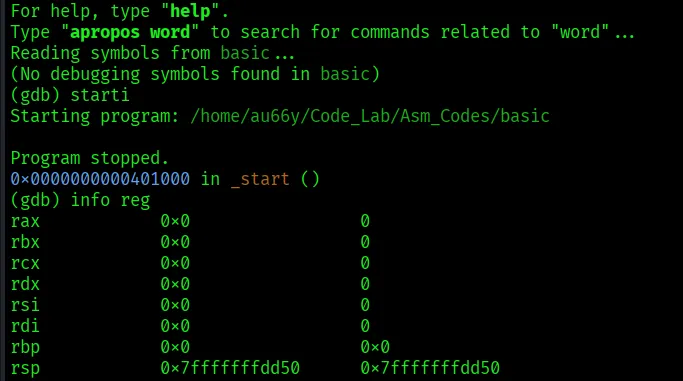
Nothing happens yet. We’ll move into next instruction with “stepi”, which stands for “step instruction”. Then, inspect with “info reg”.
There! A data is now on rax:
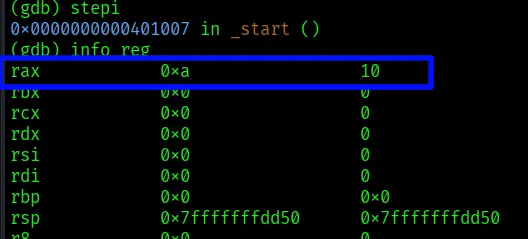
Note: “nexti” (next instruction) command also do the job. The difference between “stepi” and “nexti” is that, if there’s a function call like “call some_function”, “stepi” will step into that function and stop at its first instruction.
However in “nexti”, it will continuously execute until the function ends and stopping at the instruction after the call.
Use “nexti” if you trust the function works and don’t need to debug it.
Now we’ll continue using “stepi” and “info reg” simutaneously until all four instructions are executed:
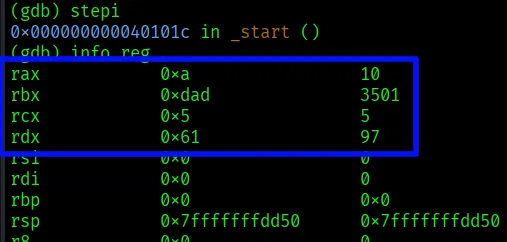
All data are now in the registers just as we wanted. But manually typing “info reg” can be an intimidating job. We’ll use a visually easier one.
Restart our program with “starti” and type “layout reg” for split view:
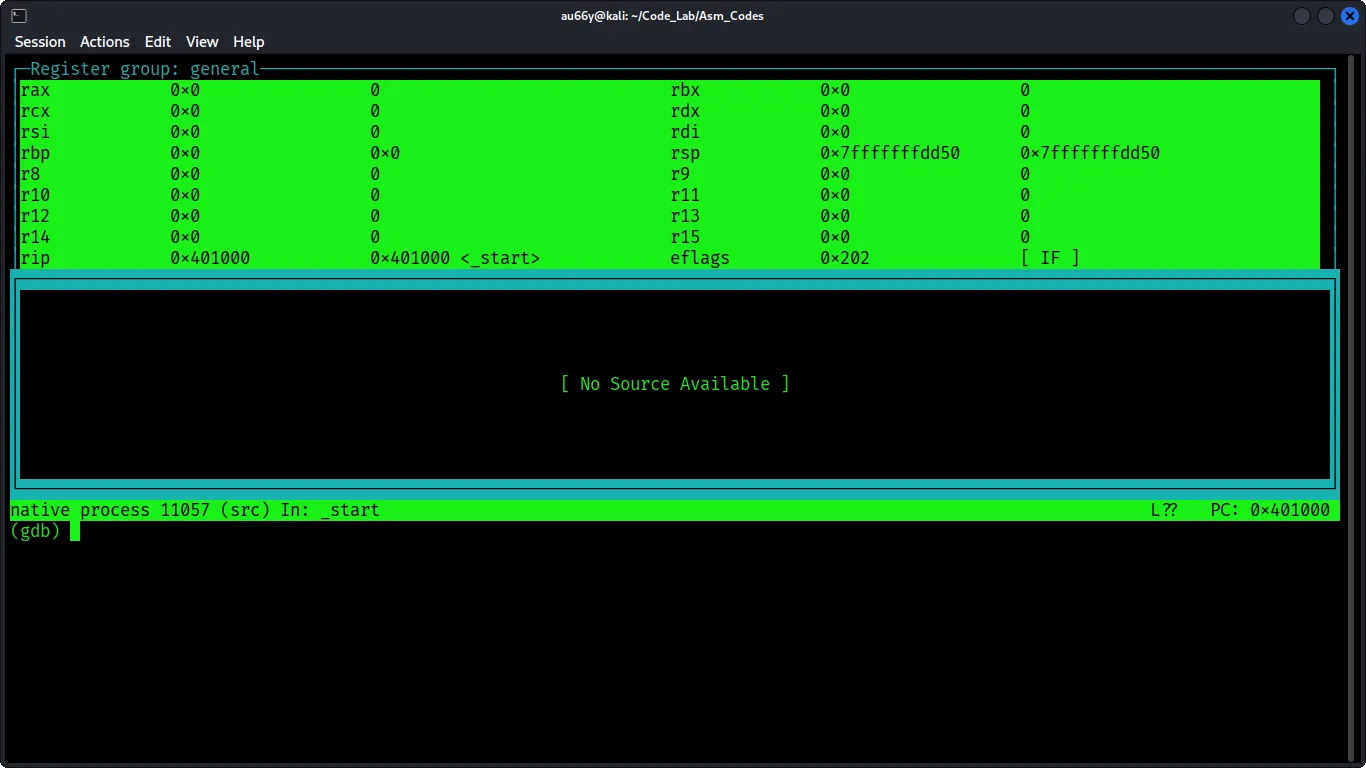
Awesome! we have an overview of all registers.
Note: “No Source Available” means missing debug symbols (-g): Our program was compiled without debug information, so GDB doesn’t know which source line corresponds to which machine instruction.
Use “stepi” for next instruction. Then hit Enter several times through all instructions.
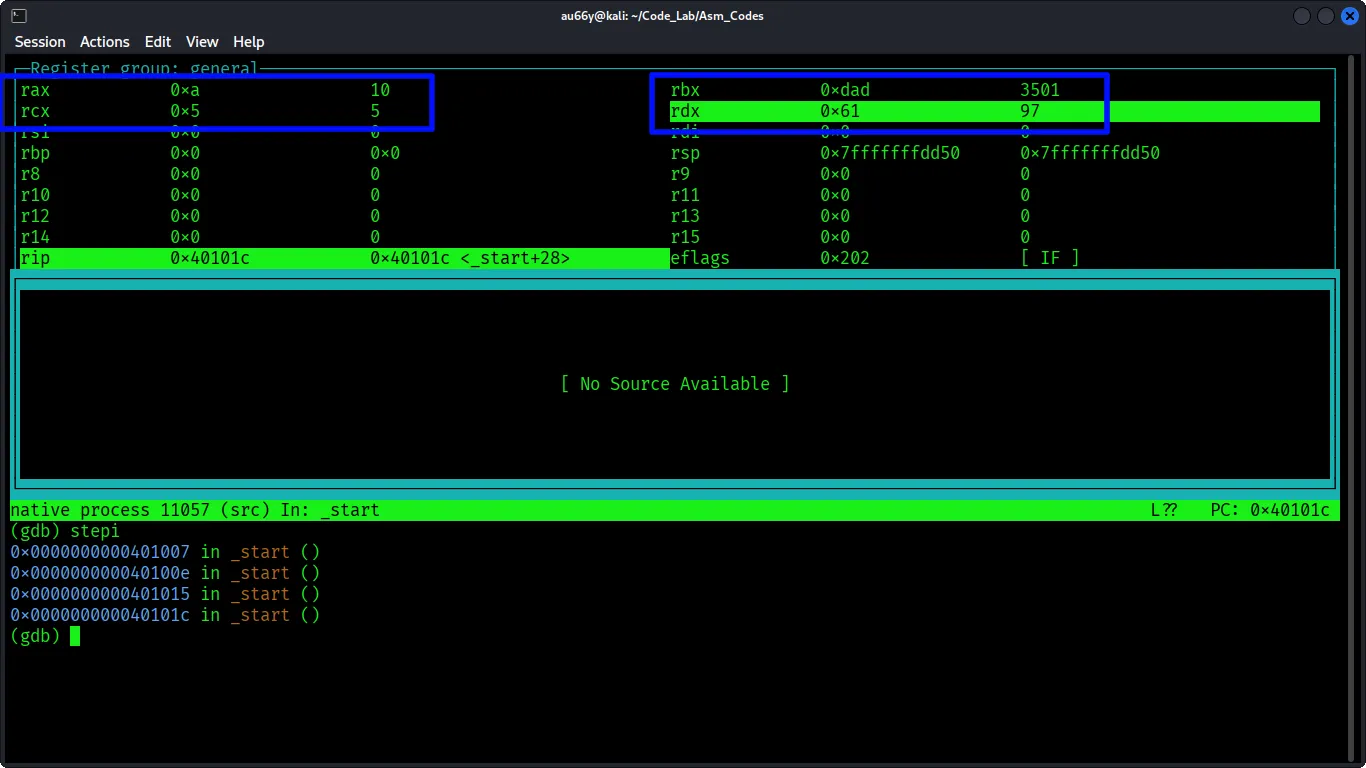
Pretty Cool right? There are several layout options like “layout asm”, “layout source”, etc.
Note: “layout asm” specifically disassemble the whole program and let you see each instructions. You would definately need to try that out!
Speaking of instructions, if you use “layout asm” or “disassemble _start”, you’ll see they are all written in AT&T format, which is so wrong (due to pwn.college, not me).
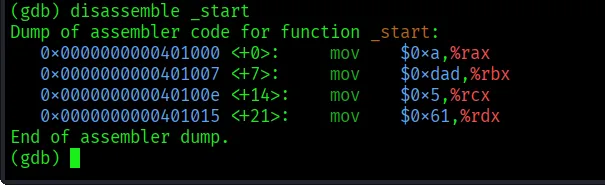
You could use “set disassembly-flavor intel” for this. However, you have to use each time you open gdb.
To let gdb to know your preferences, create a file name “.gdbinit” in your home directory like:
vim ~/.gdbinti And add this command:
set disassembly-flavor intel Note: I also add “set pagination-off” for clean view but this is solely your choice.
Breaking Steps
So far, we’ve just stepping one by one but what if we want to stop at specific instruction to inspect registers?
Let’s add some features to our program so that we can demonstrate more:
.intel_syntax noprefix
.global _start

_start:

mov rax, 10
mov rbx, 0xdad
mov rcx, 0b101
mov rdx, 'a'

push dword ptr 0x99999999
push word ptr 0xfade
push word ptr 0xcafe
Now compile our program, go to gdb and use “disassemble _start” to see the instructions:
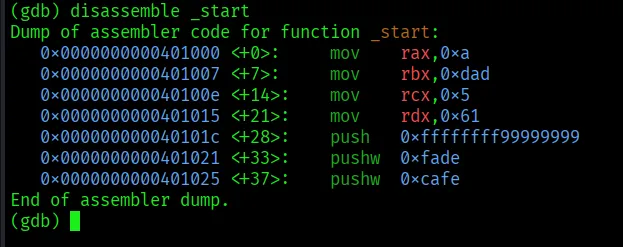
We gonna break at the place before pushing any value into stack. Note the address and use:
break *0x4010c Then, start the program with “start” (Not “starti”). If you get a warning. Just hit “n”(No). This usually happens because our program was compiled without debug symbols.
The breakpoint hits! Inspect registers with “info reg” and observe that all four instructions are already executed:
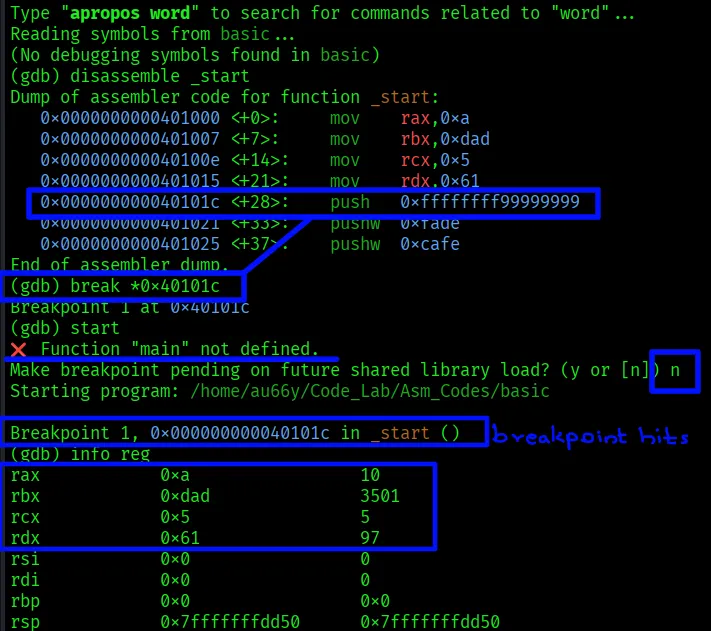
Inspect the stack with “x /gx $rsp”. But it doesn’t fill with any of our values yet.

Before escalating any further, let’s understand the command first. It’s very common in debugging processes and will be the main arsenal in your future.
x means examine and the pattern is as follows:
x /nfu [address or register]
n (Count): How many units of memory to display (default is 1).
f (Format): How to represent the data (e.g., hex, decimal, string).
u (Unit Size): The size of each memory unit (e.g., byte, word, giant word).
Here are some format specifiers (f):
| Specifier | Meaning | Description |
|---|---|---|
| x | Hexadecimal | Displays data in base-16 (initial default). |
| d | Decimal | Displays data as a signed decimal integer. |
| u | Unsigned | Displays data as an unsigned decimal integer. |
| t | Binary | Displays data as binary (bits). |
| s | String | Displays a null-terminated string. |
| i | Instruction | Disassembles memory into machine instructions. |
| a | Address | Displays the absolute address and its symbolic offset. |
And here are unit size specifiers (u):
| Specifier | Meaning | Size |
|---|---|---|
| b | Byte | 1 byte. |
| h | Halfword | 2 bytes. |
| w | Word | 4 bytes (initial default). |
| g | Giant | word 8 bytes. |
For example, you can use like “x/4wx $rsp” to examine the 4 words (4 bytes each) at the current stack pointer address in hexadecimal format. Or, “x/s 0x40062d” to display the memory at that address as a string.
In our case, we could use “x /16gx $rsp” to see 16 units of stack in 8 bytes each.
Let’s focus back to our program. Use “stepi” to start filling the stack with the values.
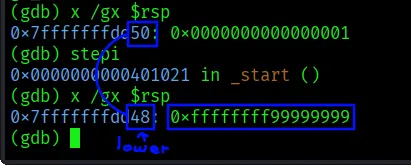
There! the value 0x99999999 is now occupying in stack. Notice, the address become lower? That’s because stack grows downward, i.e., decreasing addresses. I recommend you to study about stack if this concept confuses you.
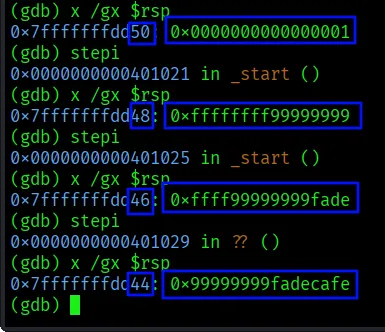
Use “stepi” and insepct stack consecutively to fill with all of our values:
Customizing Values
Last but not least. What if we want to change or rewrite our registers’ values during debugging process?
We can easily accomplish that in gdb. Like before, “break” at the place after the values are put into four registers. And then “start”.
As you have already learnt, use “layout reg” to check multiple registers. You’ll see rax, rbx, rcx and rdx are now stuffed with values:
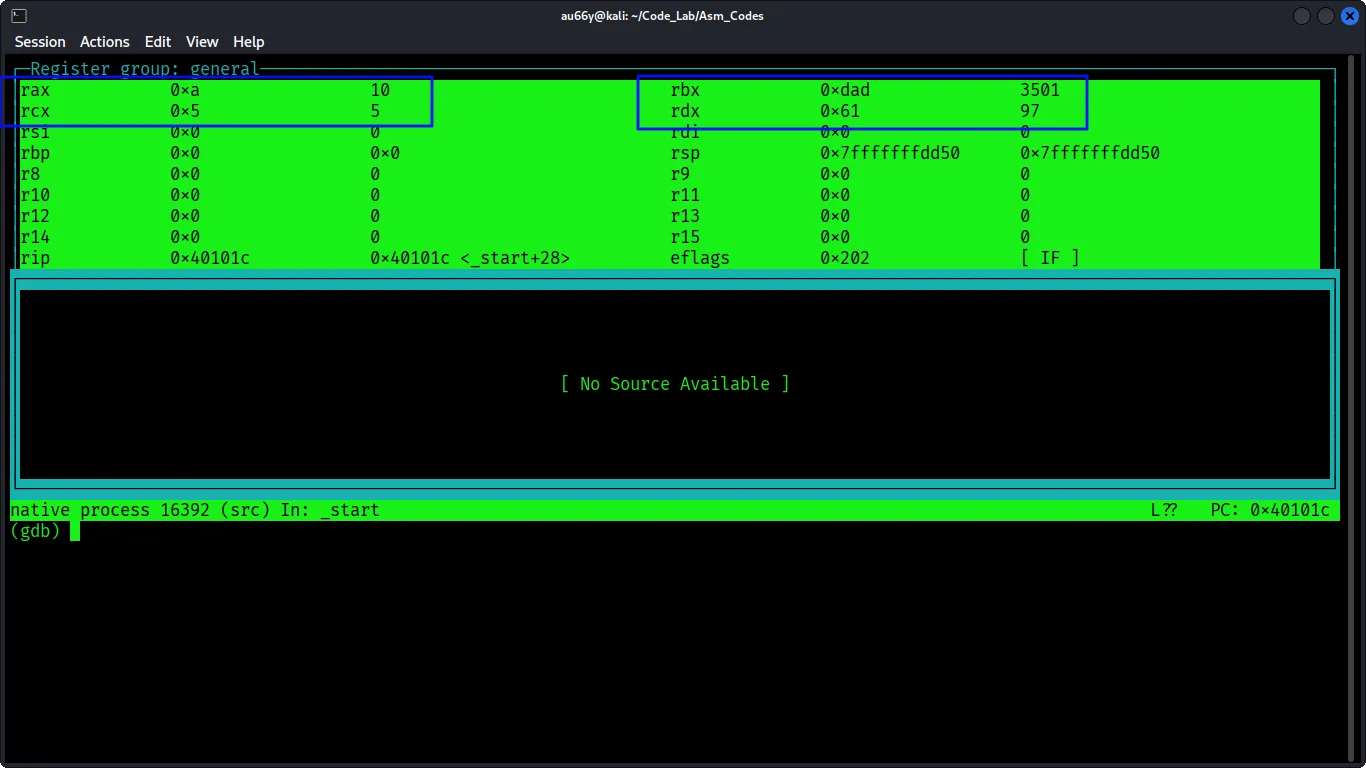
Let’s change rax first. You can simply use the command “set $rax = [desired value]”:
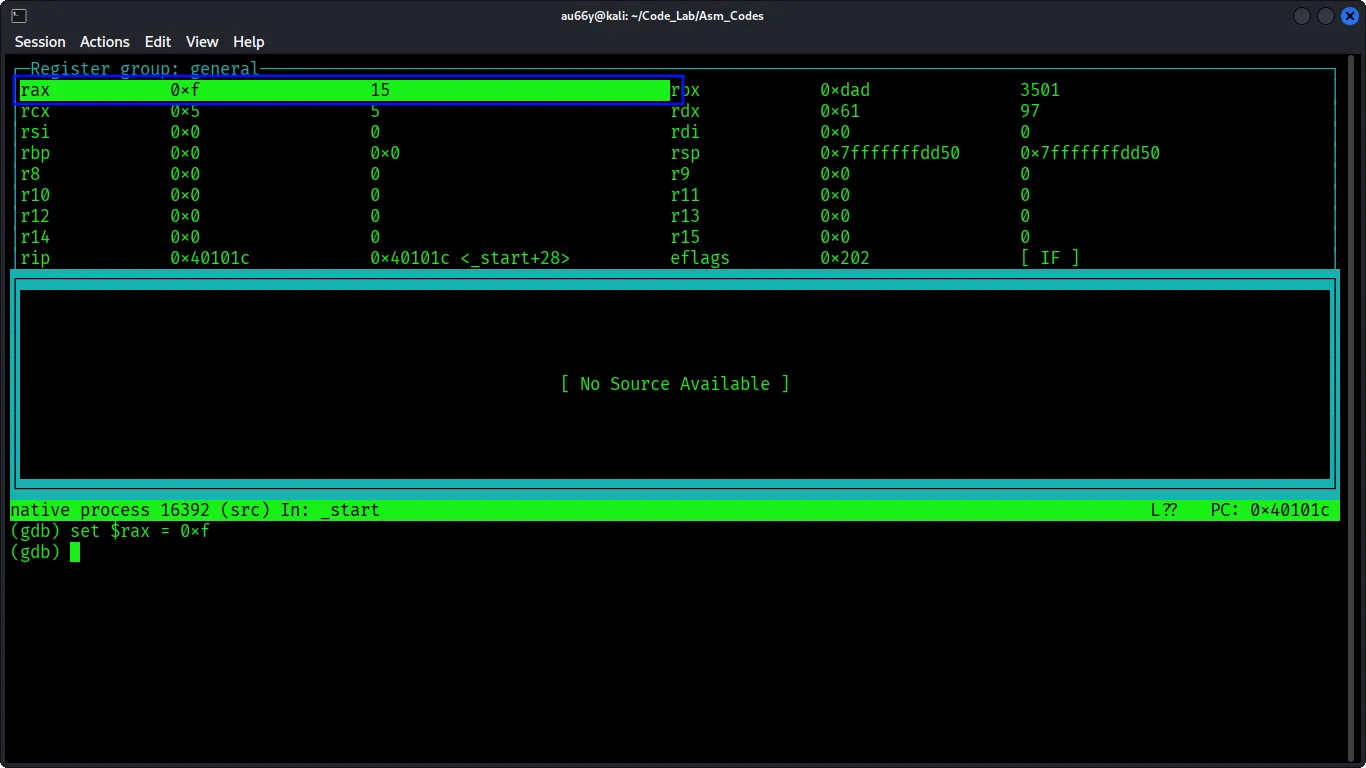
It changed! Keep doing like this to other registers and you’ll see all values are altered into your desired values:
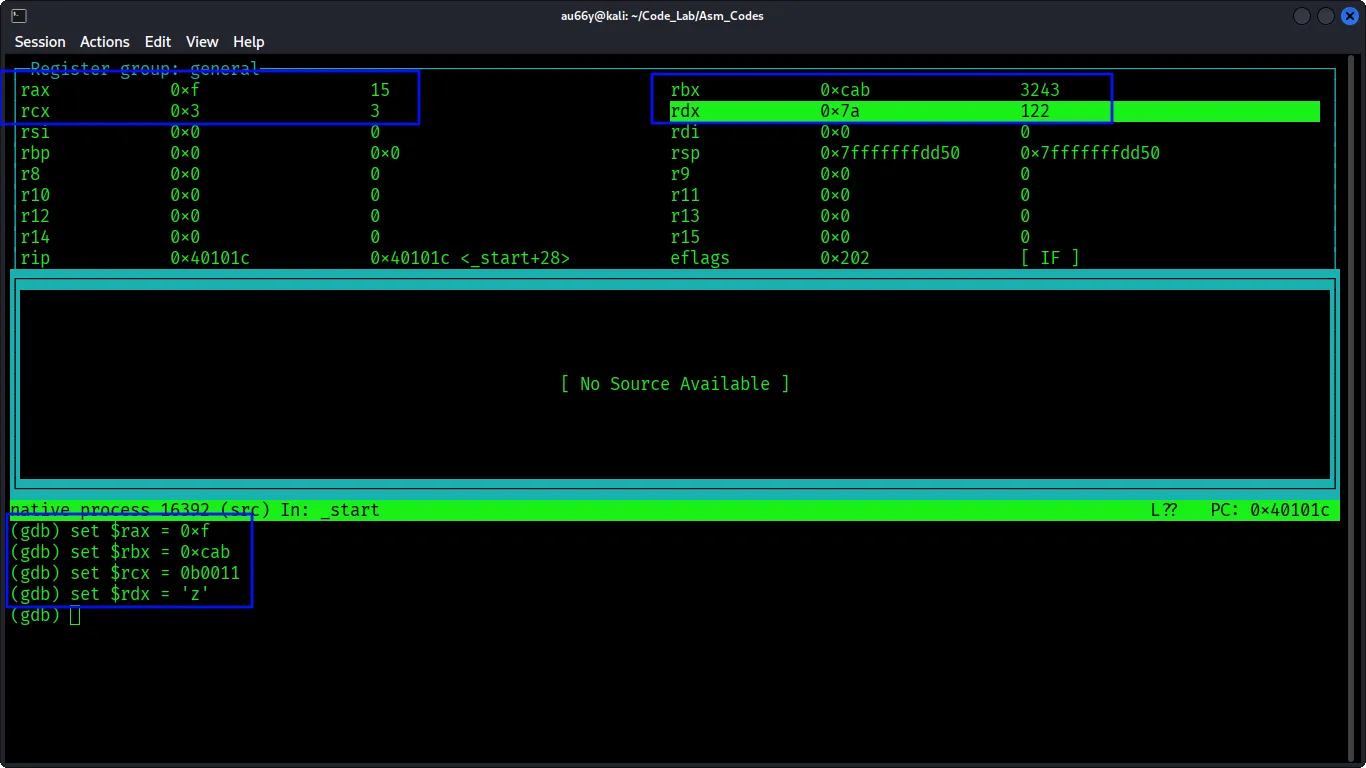
Note: If you close GDB, it terminates the program (killing the process) and the effects are lost because the process itself is destroyed.
Remember, it’s okay to change the values of general purpose registers, however if you randomly change special purpose registers like rsp (Stack Pointer), rbp (Base Pointer) or rip (Instruction Pointer), you might accidentally break the program.
But that doesn’t mean you can’t change them at all. Sometimes you will find yourself in the situation when you are required to modify these registers especially during debugging or memory exploitation CTF challenges.
Be cautious when you do that.
Outro
Now you’ve equipped with the very basic knowledge of gdb to disassemble and understand the back bones of the programs.
Here’s a breif of commands that we’ve learnt:
- start
- starti
- info reg
- stepi
- nexti
- disassemble [function]
- ~/.gdbinti
- break *[address] or [function]
- x /nfu [address or register]
- set $[reg] = [value]
You might be thinking why bother manually debugging the program when you can easily drop your code into AI and ask to fix it?
Sure you can just do that but trust me, you won’t learn anything.
You can only learn by practically doing it, especially discovering the root cause of the error and the syntax or flows of the code.
Use AI to understand WHY your code fails, don’t let AI fix for you. Do it yourself.
Because it’s easier to let AI rework your code and everybody can just do that. That’s why it’s cheap. Plus, it’s a very skiddie way.
Don’t be a skid :)
Thanks for reading till the end.
Happy Reversing!